
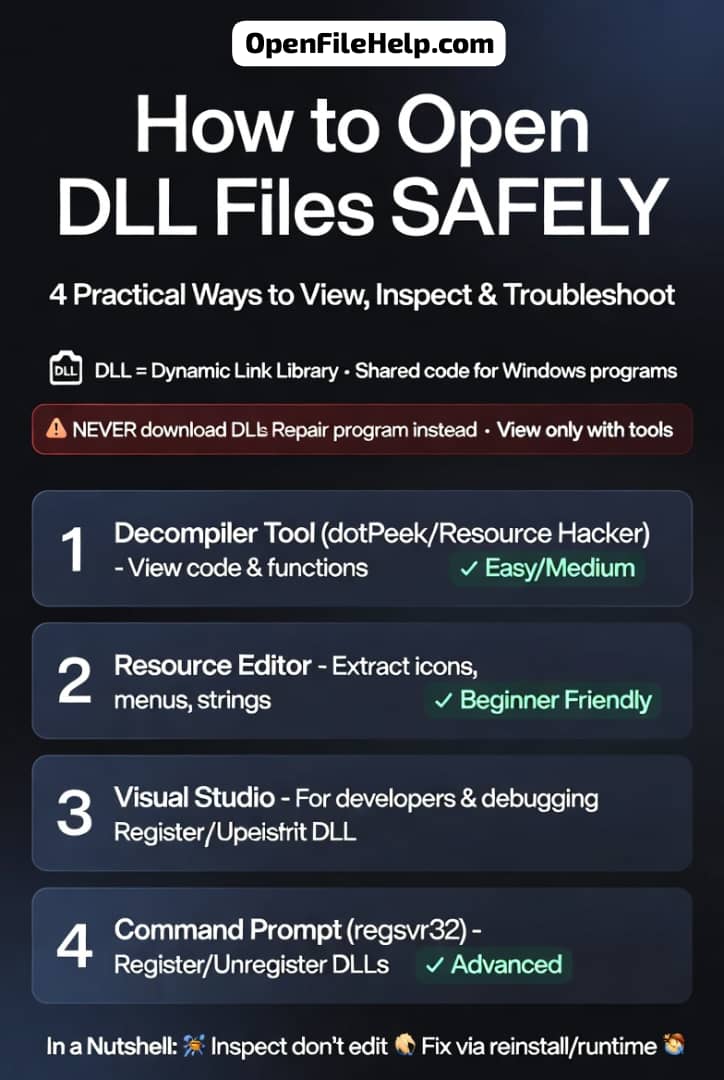
DLL files can feel a little mysterious at first. You see one in Windows, maybe hear it mentioned in a software error, and then suddenly it sounds like something only programmers are meant to understand.
In reality, a DLL file is not some strange hidden object you need to fear. It is simply a shared library file that programs use to do useful work in the background.
The important part is this: most people do not need to open DLL files like a normal document. You usually open them when you are troubleshooting an app, checking what a program contains, or developing software.
That is why knowing the right method matters. Use the wrong approach, and you can create more problems than you solve. Use the right one, and you can inspect the file safely and understand what is going on.
In this guide, I will walk you through what a DLL file is, why people open them, and four practical ways to view or inspect them on Windows. I will also show you real world examples so the process makes sense, not just the theory.
In a Nutshell
- A DLL file is a shared library that Windows programs use for common functions.
- You normally do not open a DLL file like a text file or photo.
- The safest way to inspect a DLL file is with a decompiler or program viewer.
- If you are dealing with a missing DLL error, the fix is often to repair or reinstall the related program, not download random DLLs from the internet.
Table Showing Common Ways to Open, Inspect, and Troubleshoot DLL Files
| Method | Best Used For | Difficulty Level | Safe for Beginners? | Example Use Case |
|---|---|---|---|---|
| Decompiler Tool | Viewing code and functions inside a DLL | Medium | Yes, if only viewing | Checking what functions ReportTools.dll contains |
| Visual Studio | Software development and debugging | Medium to Advanced | Mostly for developers | Adding ImageUtils.dll to a C# project |
Command Prompt (regsvr32) | Registering or unregistering DLL files | Advanced | Only with caution | Fixing an older app that cannot detect a plugin DLL |
| Resource Editor | Viewing icons, menus, and embedded assets | Easy | Yes | Extracting icons from BrandAssets.dll |
| Reinstalling the Program | Fixing missing DLL errors | Easy | Yes | Repairing a game showing VCRUNTIME140.dll missing |
| Windows Update | Replacing outdated system DLLs | Easy | Yes | Resolving compatibility issues after a failed update |
| Microsoft Visual C++ Redistributable | Restoring runtime related DLLs | Easy | Yes | Fixing missing msvcrt.dll or mfc100u.dll errors |
| System Restore | Recovering deleted or damaged DLL files | Medium | Yes, with care | Restoring Windows after accidental file removal |
What Is a DLL File?
DLL stands for Dynamic Link Library. It is a type of file used by Windows programs to store code, functions, and resources that more than one app can use. Instead of every program carrying its own copy of the same code, Windows can let several programs share one DLL.
Think of it like a toolbox in a shared workshop. Instead of every worker bringing their own screwdriver, hammer, and wrench, they all reach for the same organized toolbox when needed. That saves space and keeps things efficient.
A DLL file may contain things like:
- Functions for drawing windows and dialog boxes
- Code for printing or reading files
- Support for graphics or fonts
- Pieces of logic used by multiple apps at once
For example, user32.dll helps with user interface related tasks, while shell32.dll supports Windows shell features. If a program depends on one of these and something goes wrong, Windows might show an error saying the DLL is missing or cannot be found.
BOOKMARK: How to Open ZIP Files Without Software in 2026: Browser and Built in Tricks for Any Device
Why Would You Open a DLL File?
Most users never need to. But there are a few common reasons someone might want to open or inspect one.
You might want to open a DLL file if:
- A program is showing a missing DLL error and you want to understand what it needs
- You are a developer checking what functions the DLL contains
- You want to inspect resources like strings, icons, or internal references
- You are debugging a software problem and need more information
Here is a simple example. Suppose an older accounting app stops working and says it cannot find mfc100u.dll. That message tells you the app is expecting a Microsoft Foundation Class library. You now know the issue is probably related to the app setup or a required runtime package, not that you should go hunting for some random file download.
That is the real value of understanding DLL files. It helps you solve the problem the smart way.
Before You Open a DLL File
Before you do anything, keep this in mind: opening a DLL file is usually safe, but editing the wrong one can damage an application or even affect Windows behavior.
A few good rules:
- Do not delete a DLL unless you are sure it is unnecessary
- Do not download DLL files from random websites
- Use a viewer or decompiler instead of changing system files directly
- If the file belongs to a program, try repairing that program first
In my view, this is the biggest mistake people make. They see an error, panic, and then start replacing files one by one. That usually creates a bigger mess. A calmer approach works better.
DISCOVER: Unlock Any APK: How to Extract Resources, Icons & Code in 60 Seco
Prerequisites
To follow this guide, you only need a few things:
- A Windows computer
- The DLL file you want to inspect
- A basic understanding of file paths and folders
- One of the tools mentioned in the sections below
If you are troubleshooting a missing DLL, it also helps to know which program produced the error message. That clue often tells you what to check next.
Method 1: Open a DLL File with a Decompiler
This is one of the best choices if you want to inspect the code inside a DLL without making changes to your system.
A decompiler takes compiled code and shows it in a form that is easier to read. It does not always recreate the original source perfectly, but it is usually good enough to understand what the file does.
How to do it
- Install a trusted decompiler tool such as dotPeek, .NET Reflector, or Resource Hacker.
- Open the program and load the DLL file.
- Browse the file structure or assembly tree.
- Click through classes, methods, or resources to inspect what is inside.
Practical example
Imagine you have a DLL called ReportTools.dll from a business app. You want to know whether it contains a function related to exporting invoices. Using a decompiler, you can search the file for terms like Export, Invoice, or PDF, then inspect the matching methods.
That gives you a much clearer view of what the file is responsible for.
Best for
- Developers
- Advanced users
- Troubleshooting unknown DLL contents
- Inspecting .NET based DLL files
Method 2: Open a DLL File in Visual Studio
Visual Studio is a stronger option if you are developing software or need to work with code in a more structured environment. It is helpful when you want to analyze a DLL, reference it in a project, or explore its exported functions.
How to do it
- Install Visual Studio if you do not already have it.
- Create or open a project.
- Add the DLL as a reference or use tools that let you inspect assemblies.
- Explore the file through the project or object browser.
Practical example
Suppose you are building a C# desktop app and you want to use features from a third party DLL named ImageUtils.dll. By adding the DLL as a reference, you can see what methods are available, such as ResizeImage, ConvertToPng, or ApplyFilter.
That makes integration much easier because you are not guessing what the library can do.
Best for
- Software development
- Checking available methods
- Reusing code in a project
- Working with .NET libraries
DISCOVER: How to Recover Data from a Stuck .csdownload / .crdownload Step by Step
Method 3: Inspect a DLL with Command Prompt Tools
This method is more technical, but it is useful when you are dealing with registration related issues or checking DLL behavior from Windows itself.
A common command associated with DLL files is regsvr32, which is used to register or unregister certain DLL components. Not every DLL needs this, so use this method only when you know the file is meant to be registered.
How to do it
- Open Command Prompt as an administrator.
- Navigate to the folder containing the DLL file.
- Run the registration command if required.
- If needed, unregister the file with the reverse command.
Practical example
Let us say an older application uses a plugin DLL that is supposed to be registered in Windows. If the app stops recognizing it, the problem may not be the file itself but the registry entry connected to it.
In that case, the command line can help restore the relationship between the app and the DLL.
Best for
- System level troubleshooting
- Registration related issues
- Advanced Windows users
- Legacy software support
Method 4: Open a DLL File as a Resource File
Sometimes you do not need the full code. You just want the resources inside the DLL, such as icons, menus, text strings, or images. A resource editor is perfect for that.
How to do it
- Install a tool like Resource Hacker.
- Open the DLL file in the program.
- Browse the resource tree.
- View or export items like icons, dialogs, and string tables.
Practical example
Suppose a program stores its icon set in BrandAssets.dll. You do not need to read the code at all. You just want to see whether the custom button icons are inside. A resource editor lets you inspect those graphics quickly.
Best for
- Icons and interface assets
- Language strings
- Dialog templates
- Lightweight inspection
Four Short Alternatives for Opening or Checking a DLL
Here are a few other ways people sometimes work with DLL files:
- Use File Explorer to confirm the file name, location, and size before doing anything else.
- Use a trusted online code viewer only if the file is not sensitive and you understand the privacy tradeoff.
- Check the program folder to see whether the DLL is part of an installed application.
- Use Windows error details or logs to identify which DLL is actually causing the problem.
These options are not full opening methods, but they often help you figure out what to do next.
How to Tell Whether a DLL Problem Is Safe to Fix
If you are dealing with a missing DLL error, do not rush. First ask yourself:
- Which program is complaining?
- Did the issue start after an update or uninstall?
- Is the DLL part of a Microsoft runtime package?
- Was the file deleted, moved, or quarantined by security software?
A missing DLL often points to one of these common issues:
- The program needs to be repaired
- A runtime package is missing
- A driver update is needed
- Windows Update has not been applied
- The file was removed by mistake
A simple example: if a game says VCRUNTIME140.dll is missing, the fix is often to install the correct Microsoft Visual C++ runtime, not to download one file from a random site and drop it into the folder.
Safety and Best Practices
This part matters a lot.
- Do not edit DLL files unless you know exactly why you are doing it.
- Avoid downloading DLLs from unofficial websites.
- Scan any file from an unknown source with trusted security software.
- Use a decompiler or viewer first, not a direct editor.
- Back up the original file before making any change.
Here is the simple rule I follow: if the goal is understanding, use a viewer. If the goal is repairing, use the official program or package that owns the DLL.
DISCOVER: 5 Best Lightweight Emulators & Simulators Compared for APK File Testing
Practical Troubleshooting Tips
If a DLL will not open, try these ideas:
- Confirm that the file is actually a DLL and not a similarly named file with a different extension.
- Make sure your viewer supports the file type.
- Run the program as administrator if the file is in a protected folder.
- Try another tool if one viewer fails.
- Check whether the DLL depends on another component that is missing.
For example, if a decompiler cannot show the file clearly, the DLL may be damaged, or it may not be a .NET assembly. In that case, a different tool may work better.
Conclusion
DLL files are a normal part of how Windows software works. They help programs share functions, keep file sizes smaller, and run more efficiently. The trick is not to treat them like ordinary documents. Instead, open them with the right tool for the job.
If you need to inspect what is inside a DLL, a decompiler or resource editor is usually the safest route.
If you are troubleshooting an error, the better solution is often to repair the related app or install the correct runtime package. Once you understand that difference, DLL files become much less confusing.
The real takeaway is simple: open DLL files carefully, inspect them with the right tool, and avoid random downloads or unnecessary edits.
FREQUENTLY ASKED QUESTIONS
Not really. A DLL is compiled library code, so it usually needs a special tool such as a decompiler or resource editor.
Yes, viewing it is usually safe. Editing it is where the risk begins, especially with system files.
First try reinstalling the program, checking Windows Update, or installing the correct runtime package. Do not rush to download a DLL from an unofficial site
Often yes, especially with a decompiler. You may not get perfect source code, but you can usually inspect functions, resources, and references.