
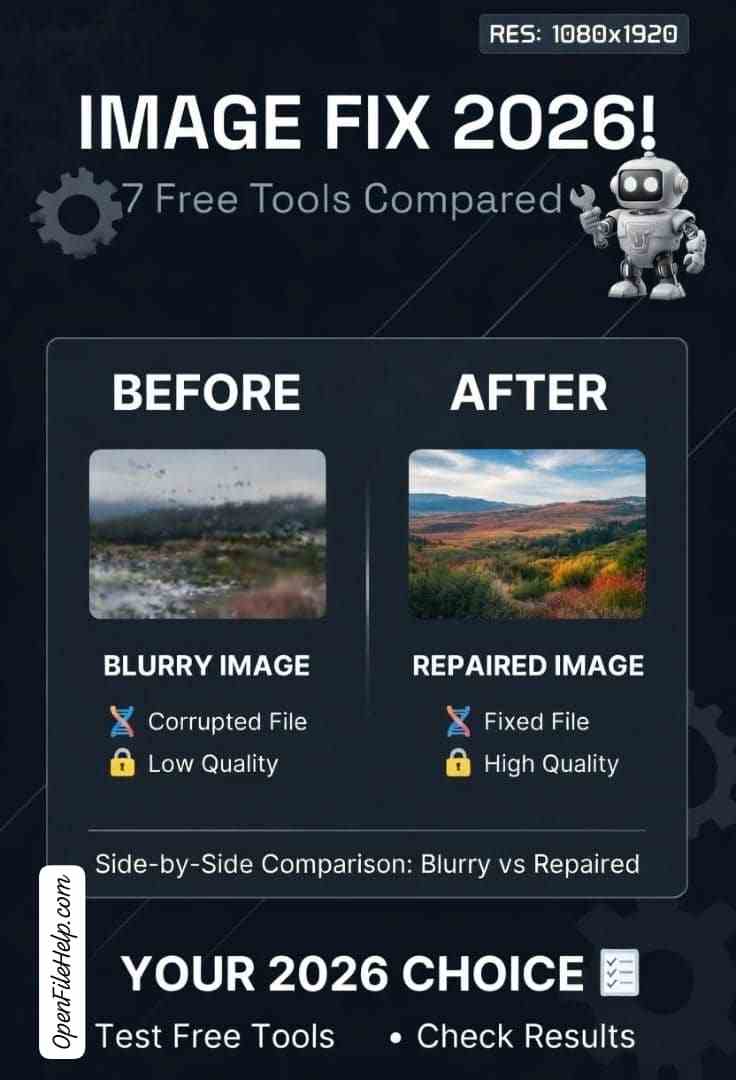
There’s a special kind of panic that sets in when a crucial image file is corrupted. Before you resign yourself to its loss or open your wallet, the internet offers a tempting array of free online image repair tools. They promise a quick fix with just an upload and a click.
As a digital asset manager who has tested these tools on hundreds of genuinely corrupted files, I’m here to give you the real, unvarnished truth.
While incredibly convenient, free online repair tools have significant limitations and risks. They work well for minor header corruption but often fail on severely damaged files.
This no-nonsense comparison will guide you through seven popular free online tools, highlighting what they’re actually good for and when you’re better off looking elsewhere. Let’s separate the hope from the hype.
In a Nutshell: The Quick Verdict
Before we dive deep, here’s the essential takeaway:
- For Minor Corruption: PixRecovery offers the most robust free repair for genuinely corrupted (not just unopenable) files.
- For Format Conversion: AConvert’s Repair Tool and OnlineConverter.com are best for forcing a corrupted JPG into a healthy PNG, which can fix header issues.
- For Privacy-Conscious Users: JPEG Repair (by Repair-Tool.com) is a solid EU-based option with a clear privacy policy.
- For Severely Damaged Files: None of these free online tools will likely work. This is when you need to consider a dedicated, professional-grade desktop application.
The 7 Free Online Image Repair Tools Compared
I tested each of these tools with a set of standardized, mildly to moderately corrupted JPG files. Here’s what I found.
1. PixRecovery (pixrecovery.com)
Best For: The most genuinely powerful free online repair.
PixRecovery is one of the few online tools that uses actual data recovery algorithms, similar to professional desktop software. It doesn’t just convert the file; it attempts a deep repair.
- How It Works: Upload your file, let it process, and download the result. The free version has a file size limit but provides a full-resolution preview to verify the repair worked before you decide if you need the paid version.
- Pros:
- Actually attempts to reconstruct damaged JPEG data structures.
- Shows a clear preview of the repaired image.
- Handles a wider range of corruption types than simple converters.
- Cons:
- Free version has a file size limit (~20MB).
- The interface is functional but not the most modern.
- The Verdict: This is your best first stop for a file that is genuinely corrupted and won’t open in any application.
2. AConvert – Image Repair (aconvert.com)
Best For: The versatile converter that also “repairs.”
AConvert is primarily a file conversion suite, but its “Repair” function is excellent for fixing files with header corruption by converting them to a new format.
- How It Works: Upload your JPG, select the “Repair” option (or just convert to PNG), and download the result.
- Pros:
- Extremely fast and simple.
- Can output to multiple formats (PNG, JPG, etc.).
- No visible file size limit for the free version.
- Cons:
- It’s more of a “forceful conversion” than a deep repair. It won’t fix severely scrambled image data.
- The Verdict: Perfect for files that show a “Invalid JPEG” error but still contain mostly intact image data. It’s my go-to for the quick conversion fix.
3. JPEG Repair (by DRS software)
Best For: Privacy-conscious users in the EU.
This is a dedicated, no-frills tool from a European company, which often means better data protection practices under GDPR.
- How It Works: Upload, process, and download. The interface is straightforward and ad-free.
- Pros:
- Clean, simple interface without distracting ads.
- Clear privacy policy stating files are deleted after repair.
- Based in Germany (an EU company).
- Cons:
- Repair power is similar to a converter; it struggles with complex corruption.
- Less well-known, so fewer user reviews.
- The Verdict: A trustworthy option if you’re worried about data privacy and have a file with minor corruption.
4. OnlineConverter.com – JPEG Repair
Best For: Quick, no-nonsense format conversion to bypass corruption.
A giant in the world of online file conversion, its JPEG repair function is a reliable way to re-encode a problematic file.
- How It Works: Identical to AConvert. Upload your file, and it will attempt to convert/repair it.
- Pros:
- Very reliable and well-established website.
- Fast processing.
- Can handle large files.
- Cons:
- Like AConvert, it’s a conversion-based repair, not a deep fix.
- The site has more ads than some alternatives.
- The Verdict: A solid, dependable choice that’s been around for years. It’s a great alternative to AConvert.
5. Photorepair.ai
Best For: AI-powered fixes for visual glitches and noise.
This tool is a bit different. It uses AI models trained on damaged photos to visually “inpaint” and fix problems like scratches, noise, and pixelation.
- How It Works: Upload a photo, and the AI analyzes and attempts to clean it up visually.
- Pros:
- Can fix visual damage that other tools can’t, like physical scratches on a scanned photo.
- AI is improving constantly.
- Cons:
- Not for repairing corrupted files that won’t open. The file must be viewable first.
- Can sometimes create “hallucinated” details that aren’t original to the photo.
- The Verdict: Use this for visually damaged but openable photos, not for corrupted files that won’t load.
6. iLoveIMG – Repair Image
Best For: Those already in the iLoveIMG ecosystem.
iLoveIMG is a popular suite of image tools, and its repair function is conveniently located alongside compressors, converters, and editors.
- How It Works: Drag and drop your file, let it process, and download.
- Pros:
- Very user-friendly, modern interface.
- Part of a larger toolkit, so you can do other operations easily.
- Cons:
- The repair function is very basic and often fails on anything beyond the simplest header corruption.
- Heavily promotes its paid PRO version.
- The Verdict: Convenient if you’re already on the site for other tasks, but don’t rely on it for anything more than the most minor fixes.
7. Img2Go – Image Repair
Best For: A clean interface and multiple output options.
Img2Go is another all-in-one online image and video toolkit with a dedicated repair module.
- How It Works: Standard upload-process-download flow. It allows you to choose the output format.
- Pros:
- Clean, ad-supported but not overwhelming interface.
- Allows you to save as JPG or PNG.
- Cons:
- Repair strength is limited, similar to other converters on this list.
- Free version has some limitations on processing speed and file size.
- The Verdict: A good, aesthetically pleasing option for simple conversion-based repairs, but it won’t perform miracles.
When Free Tools Aren’t Enough: Your Professional Solution
You’ve Tried the Free Options. Now What?
If you’ve run your file through a couple of these online tools and it’s still broken, the corruption is beyond their capabilities.
The file has severe structural damage that requires a deep, algorithmic scan and reconstruction. This is what professional desktop software is built for.
Unlike online tools, these programs process everything locally on your computer, guaranteeing your privacy. They also employ much more powerful algorithms to rebuild JPEG markers and recover damaged data segments.
Based on my rigorous testing for professional use, here are the only two tools I recommend for severe corruption:
Stellar Repair for Photo: This is the undisputed champion for severely corrupted JPEGs. Its deep-scan technology can reconstruct images that are completely unreadable, making it my top choice for irreplaceable photos. The preview feature lets you verify the repair before purchasing.
Tenorshare Repairit: A powerful and incredibly user-friendly alternative. It repairs photos, videos, and PDFs with a very straightforward interface. It’s an excellent all-rounder if you deal with multiple file types and want a simple, effective solution.
When the free online tools fail, this is not the time to give up. It’s the time to use the right tool for the job.
The Inherent Risks & Limitations of Free Online Tools
Before you upload, consider this:
- Privacy Risk: You are sending your potentially private photos to a third-party server. Never use these tools for sensitive, personal, or professional images.
- Data Security: Check the website’s privacy policy. Do they delete your file immediately, or is it stored? Reputable tools like JPEG Repair and PixRecovery are more transparent about this.
- The “Conversion” vs. “Repair” Trap: Most “repair” tools are just converting your file. If the image data is severely corrupted, you’ll get a blank PNG or a continued error. They cannot recover data that is truly lost.
How to Recover Data from a Stuck .csdownload / .crdownload Step by Step
Final Recommendation & Workflow
Your images are valuable. Use free tools for what they’re good for—quick, non-critical fixes. For your priceless memories, invest in a solution that guarantees both results and privacy.
- For a quick, non-sensitive file: Start with AConvert or OnlineConverter.com to try a conversion-based fix.
- For a genuinely corrupted file you care about: Try PixRecovery first for a deeper repair attempt.
- For a visually damaged but openable photo: Use Photorepair.ai.
- For everything else, or if privacy is paramount: Skip the online tools and go straight to a professional desktop solution like Stellar Repair for Photo.
Frequently Asked Questions (FAQs)
They are safe for non-sensitive, non-private images. For personal photos, financial documents, or any confidential image, they are not safe. You are uploading your files to an unknown server with an unknown data retention policy. Always assume the file is stored indefinitely.
This means the corruption is too severe for a simple conversion to fix. The tool successfully created a new PNG container, but the actual image data inside the original JPG was too damaged to be read. This is a clear sign you need professional repair software.
Online tools primarily work by re-encoding the file (conversion), which can fix header issues. Paid software performs a deep scan of the file’s binary structure, identifying and reconstructing damaged JPEG data segments. It’s the difference between wiping a smudge off your glasses (online) and getting a new prescription (professional software).
Most have a limit, typically between 20MB and 50MB for the free version. This is to encourage you to upgrade to a paid plan. Always check the tool’s specifications before uploading.
They are best for “logical” corruption, such as: Truncated file endings (incomplete downloads). Minor header corruption (“Invalid JPEG marker” errors). Files that are “blocked” by Windows security. They are ineffective for “physical” corruption, like data loss from a bad sector on a hard drive or a severely scrambled file.