
So, you’ve got an Android Application Package file: an APK file, sitting on your Windows desktop. Your first instinct might be to search for an Android emulator to run it.
But what if you don’t want to go through the hassle of a massive, resource-heavy emulator installation? What if your goal isn’t to run the app, but to understand it?
You’ve come to the right place. As someone who has dissected countless APKs for security research, reverse engineering, and simple curiosity, I’m here to show you the most efficient path.
Opening and inspecting an APK on Windows without an emulator is not only possible; for many tasks, it’s the superior workflow.
This guide will walk you through two powerful methods: a quick-and-easy extraction for everyone and a deeper, more technical inspection for developers and power users.
First, a Crucial Understanding: What Does Open apk file Really Mean?
To be crystal clear from the start: You cannot run an Android app natively on Windows without an emulator or a compatibility layer like Windows Subsystem for Android.
The APK contains compiled code (DEX files) and resources designed for the ARM architecture and the Android operating system.
When we talk about “opening” an APK without an emulator, we mean inspecting its contents. Think of an APK not as an executable like .exe, but as a specialized archive file: a digital shipping container.
Our goal is to unpack that container to see what’s inside: images, code, manifest files, and certificates.
This process is invaluable for:
· Developers: Learning from other apps (within legal and ethical boundaries!).
· Security Researchers: Analyzing an app for potential malware or privacy concerns.
· Curious Users: Extracting cool sounds, images, or understanding what permissions an app truly requires.
· QA Testers: Verifying build information and resources.
Method 1: The Simple Archive Extraction (For Everyone)
This is the fastest way to crack open an APK and see its raw components. It requires no technical expertise and uses a tool you probably already have.
Your Tool of Choice: Use 7-Zip to Open Any APK File
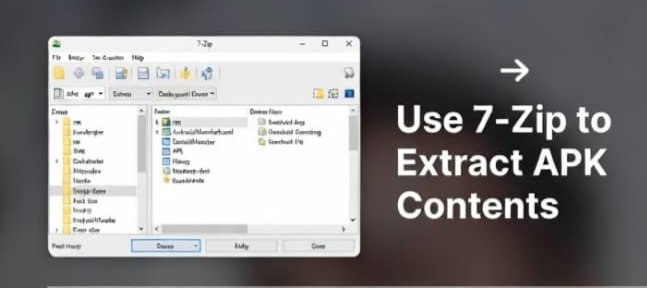
7-Zip is a legendary, open-source file archiver. It’s lightweight, powerful, and free. It recognizes APK files as nothing more than fancy ZIP folders, which is technically exactly what they are.
Step-by-Step Guide:
- Download and Install 7-Zip: If you don’t have it already, grab it from the official 7-Zip website. The installation is straightforward.
- Locate Your APK File: Find the .apk file in your Windows File Explorer.
- “Open” It: You have two equally effective options:
· Right-click Method: Right-click on the .apk file, navigate to 7-Zip in the context menu, and select “Open archive”.
· Drag-and-Drop Method: Simply drag the .apk file and drop it onto the 7-Zip window or desktop icon. - Explore the Contents: Voilà! You are now inside the APK. You’ll see a structure of files and folders. Here’s a breakdown of what you’re looking at:
· META-INF/: Contains the app’s manifest file (MANIFEST.MF), signature files (CERT.RSA, CERT.SF), and archive metadata.
· res/: This is a treasure trove. It holds all the app’s resources: images (in drawable-* folders), layouts (layout/), strings (values/strings.xml), and more.
· classes.dex: This is the compiled Dalvik Executable code. This is the actual app code, compiled into a format the Android Runtime (ART) understands. It’s not human-readable in this state.
· resources.arsc: A compiled file containing pre-compiled resources, like binary XML for your strings.
· AndroidManifest.xml: Arguably the most important file. It declares the app’s permissions, components (activities, services), version, and required API level. However, it’s stored in a compressed binary format and can’t be read directly here.
What You Can Do Now:
You can extract any file from this archive.Want the app’s icon? Look in res/drawable-hdpi/ or similar folders. Found a cool notification sound? Check res/raw/. You can drag these files directly to your desktop to save them.
Limitation: While you can see and extract resources, the two most critical files for deep inspection, classes.dex and AndroidManifest.xml: are in a binary format. For that, we need Method 2.
Method 2: The Deep Dive Inspection (For Power Users & Developers)
If you need to read the AndroidManifest.xml or peek at the code, you need more specialized tools. This process, often called “reverse engineering,” uses the official Android SDK tools in a command-line interface (CLI). Don’t be intimidated; we’ll walk through it.
Your Toolkit: APK Tool & The Power of the Command Prompt
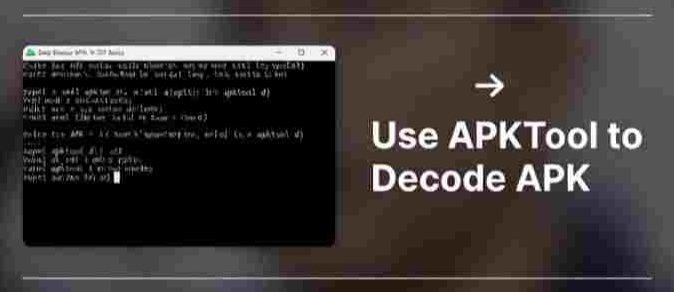
We will use two key tools: apktool and jadx.
· apktool is the Swiss Army knife for APKs. It decodes the binary resources.arsc and AndroidManifest.xml back into a nearly-original form, and it also converts the classes.dex files into smali code (an assembly-like language for Android).
· jadx is a miracle worker. It takes the classes.dex file and decompiles it back into human-readable Java (or Kotlin) code. This is a game-changer for understanding how an app works.
Step 1: Install Java
Both of these tools require a Java Runtime Environment (JRE). You can download it from Adoptium (a trusted, open-source source for Java).
Step 2: Download and Set Up the Tools
- Get APKTool: Go to the APKTool official website. Download the installer script for Windows (apktool.bat) and the JAR file (apktool_2.9.3.jar). Rename the JAR file to apktool.jar. Place both files in a dedicated folder, e.g., C:\APK-Tools.
- Get JADX: Head to the JADX GitHub releases page. Download the zip file (e.g., jadx-1.4.7.zip). Extract its contents into the same C:\APK-Tools\ folder.
Step 3: Using APKTool to Decode the APK
- Open Command Prompt: Press Win + R, type cmd, and hit Enter.
- Navigate to Your Tools: In the Command Prompt, type:
cd C:\APK-Tools- Run APKTool: Now, run the following command to decode your APK. Replace path\to\your\app.apk with the actual path to your file.
apktool.bat d "path\to\your\app.apk" -o "output-folder"For example: apktool.bat d “C:\Users\YourName\Downloads\cool_app.apk” -o “C:\APK-Inspection”
This command tells APKTool to decode (d) the specified APK and output the results into a folder named output-folder. The process will run, and you’ll see a new folder with the decoded contents.
What You’ve Achieved:
Inside your output folder,you now have a fully decoded APK. The AndroidManifest.xml is now a readable XML file. The res/ folder contains all its XML files in a readable state. The smali/ folder contains the disassembled code.
Step 4: Using JADX to Decompile the Code
While smali is useful, readable Java code is better. This is where JADX shines.
- Navigate to the JADX Folder: In your Command Prompt, move into the JADX bin directory.
cd C:\APK-Tools\jadx\bin- Run JADX-GUI (The Easy Way): JADX comes with a graphical interface. Simply type:
jadx-gui.bat- Open Your APK: In the JADX-GUI window that opens, go to File > Open Files and select your original .apk file.
JADX will now work its magic, decompiling the entire app and presenting you with a project tree on the left. You can navigate through packages, open Java classes, and read the code almost as if you had the original source.
You can also use the search function (Ctrl+F) to find specific classes, methods, or strings.
Discover how to Open and inspect APK files for free using trusted desktop and mobile tools. Extract resources, analyze code, and scan for malware with ease and confidence.
When You Absolutely Need an Emulator (Or a Physical Device)
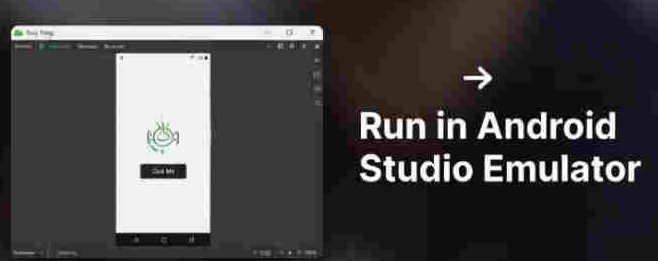
The methods above are for inspection. If your ultimate goal is to test the app’s functionality, see how it renders, or interact with it, you will need an Android environment.
While a physical device is best, sometimes a virtual one is necessary for testing on different Android versions or screen sizes.
For this, you don’t need a bulky gaming emulator like BlueStacks. The official Android Studio provides a first-class, performant emulator designed for developers.
Expert Recommendation: The Right Tool for a Real Android Environment
For When You Need to RUN the APK File
While the techniques in this article are perfect for inspection, there’s no substitute for seeing an app in action.
If your workflow requires testing functionality, UI rendering, or device-specific features, you need a reliable Android environment.
For professionals and enthusiasts who demand performance and accuracy, the official Android Studio Emulator is the gold standard.
Unlike third-party emulators, it’s built and maintained by Google, receives direct updates, and integrates seamlessly with the official development toolkit.
It provides a clean, bloatware-free Android experience and allows you to create virtual devices for every possible Android version and screen size.
Why it’s the pro’s choice:
Unmatched Authenticity: Runs a true-to-form Android system image.
High Performance: Leverages hardware acceleration (VT-x/AMD-V) for smooth operation.
Total Control: Simulate different network types, GPS locations, and hardware sensors.
It’s Free: Android Studio and its emulator are completely free to download and use.
Download Android Studio from the Official Site
Note: This is a direct link to the official developer.android.com website. As a trusted resource in the development community, we recommend going straight to the source for your core tools.
A Final Word on Ethics and Security
With great power comes great responsibility. The ability to inspect any APK is powerful.
· Respect Copyright and Licenses: The code and assets inside APKs are almost always the intellectual property of the developer.
Use this knowledge for learning, security analysis, or personal use, not for redistribution or plagiarism.
· Security First: Only analyze APK files from sources you trust. Inspecting a malicious APK can potentially be risky, even without running it, if you accidentally execute a script. Use a virtual machine if you’re analyzing untrusted software.
· It’s for Learning: The primary goal of this guide is to empower you with knowledge: to demystify the black box of an Android app and give you insights into the technology you use every day.
You are now equipped with a skill set that bridges the gap between a casual user and a technical analyst. Happy inspecting