
How to Open ZIP Files on Android and iPhone Without Stress

Ever downloaded a ZIP file on your phone, tapped it, and then just stood there wondering what to do next?
You are not alone. That little moment of confusion happens to a lot of people. The file is there, the download looks fine, but the phone does not always make it obvious what should happen after that. Sometimes the archive opens right away. Sometimes it looks like nothing happened at all. And sometimes you end up tapping the same file three times just to be sure.
The thing is, opening ZIP files on a phone is usually very simple once you know where to look. Android and iPhone both have built in ways to handle ZIP files, and in many cases you do not need any extra app.
From my experience, the real problem is usually not the ZIP file itself. It is often the way the file was saved, where it was stored, or which app you used to open it.
In this guide, I will walk you through how to open ZIP files on Android and iPhone in a clear, friendly way. I will also show you what to do when a ZIP file does not open properly, when it asks for a password, and when a free app makes life easier.
In a Nutshell
- A ZIP file is just a compressed folder that holds one or more files in a smaller package.
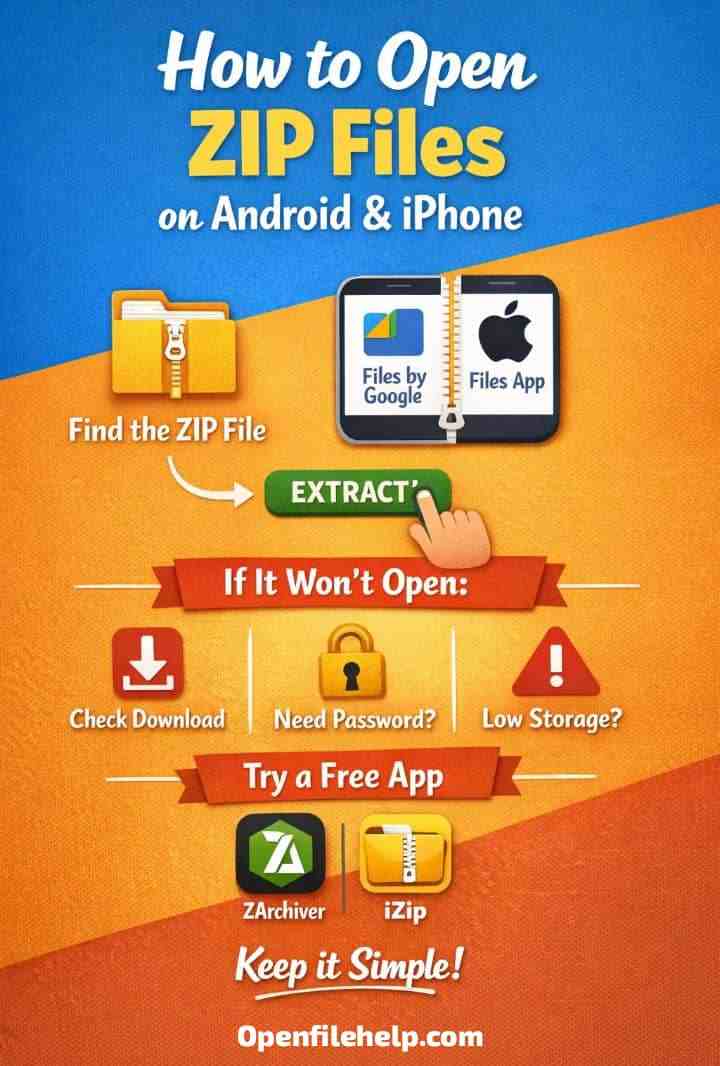
- On Android, Files by Google can usually extract it. On iPhone, the Files app can usually open it with a simple tap.
- If the archive is protected, damaged, or unusually formatted, a trusted app can help.
- The simplest rule is this. Start with the built in app on your phone. If that does not work, move to a reliable archive app. Most of the time, that is all you need.
What a ZIP File Actually Is
A ZIP file is a compressed archive. In plain language, that means it is a container that bundles files together and makes them smaller or easier to send. People use ZIP files for documents, photos, projects, downloads, and shared folders because they are convenient and tidy.
If someone sends you a ZIP file, they are usually trying to make sharing simpler. Instead of sending ten separate files, they put everything into one package. That is helpful, but it can feel confusing the first time you try to open it on a phone, especially if you are used to computers doing all the work for you.
The important thing to remember is that a ZIP file is not broken just because it looks unfamiliar. It usually just needs to be opened in the right place.
Before You Start
Before opening a ZIP file, check a few basics.
- Make sure the file has fully downloaded.
- Make sure you know where the file was saved.
- Make sure your phone has enough storage for the extracted files.
- Make sure you are using a file manager or archive app that can handle ZIP files.
That last point matters more than most people realize. If you open a ZIP file from the wrong app, nothing useful may happen. If you go back to the folder where the file lives, the process usually becomes much easier.
How to Open ZIP Files on Android
Android is fairly flexible when it comes to ZIP files. In many cases, your phone already has what it needs. The key is to use the file manager properly and start with the simplest option first.
Method 1: Use Files by Google
Files by Google is one of the easiest ways to open ZIP files on Android. If it is already installed on your phone, that is the best place to start.
Open the app, find the ZIP file, and tap it. You should see an option to extract the contents. Once you tap extract, the phone creates the files in a new folder. After that, you can open the folder and use the files normally.
One thing I always tell people is to look carefully at the folder where the ZIP file is stored. The extracted files usually appear right there too. A lot of people think the files disappeared, but they are often sitting in the same place as the original archive.
Method 2: Use Your Phone’s Built In File Manager
Many Android phones come with a built in file manager. The name may be different depending on the brand, but the workflow is usually similar. Open the file manager, go to the folder that contains the ZIP file, tap it, and look for an extract option.
Some phones make the option easy to see. Others hide it in a menu. That is normal. If the ZIP file does not open immediately, do not assume something is wrong. Just check the menu, look for extract, and try again.
From my experience, Android users often solve the problem once they stop tapping the file blindly and start opening it from the correct folder. That small adjustment saves a lot of frustration.
Learn how to open password protected ZIP files on Windows, Mac, Android, and iPhone. Simple steps, tools, and fixes for locked ZIP files.
How to Open ZIP Files on iPhone
iPhone also makes this easier than many people expect. You do not usually need a special download unless the archive is more advanced or password protected.
Method 1: Use the Files App
The Files app is the main place to open ZIP files on iPhone. Open Files, go to the folder where the ZIP file was saved, and tap it. The phone creates a new folder containing the extracted items.
This is one of the cleanest mobile file experiences, but it can still feel odd the first time because there is no big dramatic pop up. You tap the file, it quietly does its job, and then the folder appears. Simple, but easy to miss if you are not watching closely.
After extraction, open the new folder and you should see the contents right away. If the folder name looks unclear, you can rename it to something easier to remember.
Method 2: Save the File Into Files First
If the ZIP file came from email, chat, or a browser download, it may help to save it into the Files app first before trying to open it. That keeps everything in one place and makes the process more predictable.
This small habit often saves time. Instead of opening the archive from wherever it landed, you give it a proper home first. That makes extraction smoother and makes the file easier to find later.
What to Do If the ZIP File Does Not Open
Sometimes the archive still refuses to open, even when you are doing everything right. That does not always mean the file is ruined. It usually means one of a few common issues is getting in the way.
First, check whether the file finished downloading. A partially downloaded ZIP file often looks normal but cannot be opened properly. Second, check storage space. If your phone is nearly full, extraction may fail. Third, check whether the file is password protected. If it is, your built in tool may not be enough.
Another thing worth checking is whether the file was sent correctly in the first place. A damaged ZIP file can look fine on the outside but still fail when you try to extract it. In that situation, asking the sender to resend it is often the quickest fix.
When You Need a Free App
Built in tools work well for normal ZIP files, but free apps are useful when you want more control or better support for tricky archives.
On Android, apps like ZArchiver and RAR are popular because they handle archive files more flexibly. On iPhone, iZip and WinZip are common choices when the Files app is not enough. These apps are especially helpful if the ZIP file is password protected or if it includes a format your phone does not like very much.
The main idea here is not to download a bunch of random tools. Stick to trusted apps with good reputations. That keeps the process safer and usually gives you better results anyway.
Learn how to open ZIP files on Windows 11 or 10 without extra software! Follow this step-by-step 2026 guide for easy file extraction.
How to Handle Password Protected ZIP Files
This is where people often get stuck. A password protected ZIP file is not broken. It is just locked.
If you know the password, enter it carefully. Capital letters, numbers, and symbols all matter. On a phone keyboard, it is easy to make a tiny mistake without noticing. If the password keeps failing, try typing it again slowly.
If you do not know the password, the best move is to contact the sender or check your messages, notes, or password manager. That sounds simple, but in my view it is still the most realistic way to solve the problem. Most people spend too long guessing when the answer is already sitting in a chat thread or email.
Do not waste time on sketchy unlock tools from random websites. Those are rarely worth the risk.
Common ZIP File Problems and Easy Fixes
If the ZIP file will not open, start with the basics. Check that it finished downloading. Check that your phone has enough space. Check whether it is password protected. Check whether you are using the right app.
If the extracted files are missing, go back to the original folder where the archive was saved. That is usually where the new folder appears. If the file works on one device but not another, the issue is probably the app, not the archive itself.
If the password keeps failing, slow down and retype it carefully. A small typing error is one of the most common reasons a file seems impossible to open.
The real takeaway here is that ZIP problems on mobile are usually simple problems wearing a confusing mask.
Safety Tips Before You Open Any ZIP File
Always be careful with ZIP files from people you do not know well. A ZIP file is just a container, so it can hold almost anything. That means the usual file safety habits still matter.
Only open files from trusted senders. Be cautious with unexpected downloads. And if a ZIP file appears out of nowhere in your inbox or chat, take a moment to think before opening it. That short pause is often enough to avoid unnecessary trouble.
Also, keep important passwords somewhere safe. A password manager makes life much easier because you do not have to depend on memory alone. One small habit now can save you a lot of stress later.
Conclusion
Opening ZIP files on Android and iPhone is usually quick once you know the right steps. Start with the built in tools on your phone. On Android, that means Files by Google or your default file manager. On iPhone, that means the Files app.
If the ZIP file is password protected, damaged, or more advanced than usual, a trusted app can step in and do the job. The important part is not to overthink it. Open the file from the right folder, use the simplest tool first, and only switch apps when you actually need to.
Once you get used to it, the whole process becomes second nature. And honestly, that is usually the point where the confusion disappears.
FAQs
How do I open a ZIP file on Android?
Open the file in Files by Google or your phone’s file manager, then tap extract if the option appears.
How do I open a ZIP file on iPhone?
Open the ZIP file in the Files app. A new folder should appear with the extracted contents.
Why will my ZIP file not open on my phone?
It may still be downloading, it may be damaged, it may be password protected, or the app you are using may not support it well.
Do I need an app to unzip files on mobile?
Not usually. Most normal ZIP files can be opened with the built in tools on Android and iPhone.
What should I do if I do not have the password?
Go back to the sender, check your messages or notes, or look in your password manager. That is the safest and most practical fix.