
We’ve all been there. Your phone buzzes with a flurry of WhatsApp messages: family photos, a hilarious meme, a critical document. But squinting at that small screen feels limiting.
You want to see those photos on your large monitor or quickly check a document without the cumbersome process of emailing it to yourself.
What if you could access your WhatsApp media directly on your PC, even if your phone is in another room, or even off?
As a tech specialist who has tested countless workarounds for streamlining digital communication, I can confirm that it’s not only possible but can be a game-changer for your productivity and media enjoyment.
This guide will walk you through five powerful methods, from the official solution to clever third-party tools, so you can choose the one that best fits your needs.
In a Nutshell
Here’s a rapid-fire overview of your best options for viewing WhatsApp media on your PC without your phone:
- WhatsApp Web/Desktop: The official, secure method. Mirrors your phone’s chats in real-time. Requires your phone to be connected to the internet.
- BlueStacks: An Android emulator. Lets you install the actual WhatsApp Android app on your PC. Requires a one-time phone verification, then works independently.
- WhatsViewer: A desktop forensic tool. Reads and displays media directly from a local backup file on your computer. No phone or internet needed after backup.
- WA Data Viewer (by CodedColor): Similar to WhatsViewer, this tool scans and organizes media from your WhatsApp local backup folders. Completely offline.
- Google Drive / iCloud Backup Web Access: A partial solution. Lets you view media you’ve previously backed up to the cloud via your browser. Doesn’t show new, unbacked-up media.
The 5 Best Apps to Preview WhatsApp Media on PC
1. WhatsApp Web & Desktop Apps (Official Method)
Best for: Most users who want a real-time, secure, and official mirror of their chats.
This is WhatsApp’s own solution. The web client (web.whatsapp.com) and the downloadable desktop apps for Windows and Mac don’t store messages on your PC; they simply mirror what’s on your phone in real-time.
How It Works: You scan a QR code with your phone’s WhatsApp to link the devices. Your phone must be connected to the internet for the PC client to function.
Pros:
- Official & Secure: End-to-end encryption is maintained.
- Real-Time Access: See messages and media as they arrive.
- Full Functionality: You can send and receive messages, documents, and make calls directly from your PC.
Cons:
- Phone Dependency: Your phone must be on and have an active internet connection. It’s a mirror, not an independent client.
The Bottom Line: Best solution for daily use at your desk, but it doesn’t work if your phone is lost, broken, or offline.
2. BlueStacks (The Android Emulator)

Best for: Users who want the full, standalone WhatsApp Android experience on their PC.
BlueStacks creates a virtual Android phone on your Windows or Mac computer. You can install WhatsApp inside this emulator.
How It Works: Install BlueStacks, log into the Google Play Store, download WhatsApp, and verify your number. This logs you out of WhatsApp on your physical phone.
Pros:
- True Standalone Access: Works independently of your physical phone.
- Full App Experience: Every feature of the mobile app, optimized for a bigger screen.
Cons:
- Logs Out Other Devices: Only one “primary” device can be active at a time.
- Resource Heavy: Requires decent RAM and CPU power.
The Bottom Line: A powerful method to run WhatsApp natively on your PC, but not meant for simultaneous use with your phone.
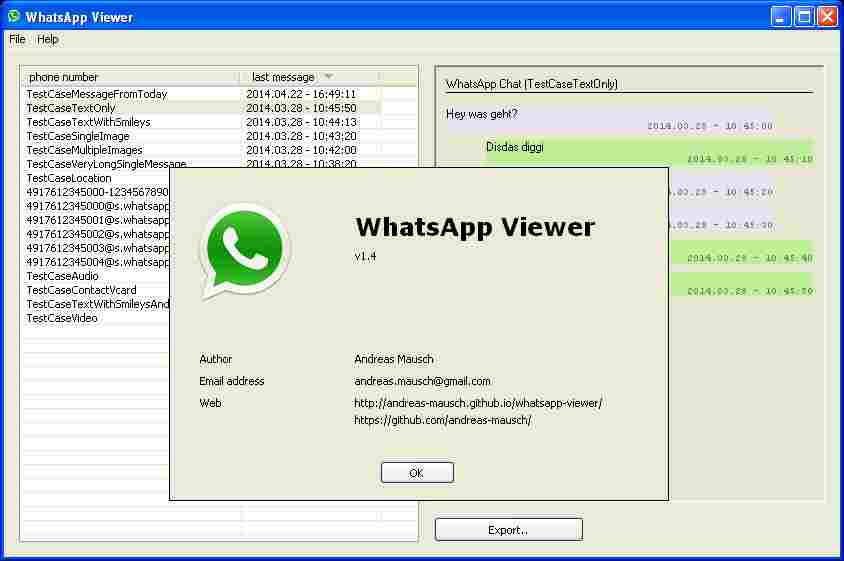
3. WhatsViewer (Forensic Tool)

Best for: Accessing old backups and viewing media without an internet connection or phone.
WhatsViewer is a Windows desktop app that reads local backup files created by WhatsApp Desktop.
How It Works: Point the software to the folder on your PC where WhatsApp stores encrypted local backups. It decrypts and displays chats, letting you browse and export media.
Pros:
- Completely Offline: No phone or internet required.
- Powerful Export: Save all media and chats in an organized way.
- Forensic Capabilities: Useful for creating archives or recovering specific old files.
Cons:
- Not Real-Time: Shows data only from the most recent local backup.
- Windows Only.
The Bottom Line: Ultimate tool for digging into existing local backups and extracting media at will.
4. WA Data Viewer (by CodedColor)
Best for: A user-friendly alternative to WhatsViewer for browsing local backup media.
It scans your WhatsApp backup folders and presents the media in a clean, gallery-like interface.
How It Works: Select your WhatsApp backup folder, and the tool scans it, displaying all images and videos in chronological order. It can also display profile pictures and status updates.
Pros:
- Simple, Visual Interface.
- Works Offline: No phone or internet needed.
- Fast Scanning.
Cons:
- Limited to Local Backups.
- Might not parse chats as deeply as WhatsViewer.
The Bottom Line: Ideal for quickly viewing and saving images and videos from your PC’s WhatsApp folder.
5. Google Drive / iCloud Backup Web Access (Partial Solution)
Best for: Retrieving older media backed up to the cloud.
This method accesses archived photos and videos via a browser.
How It Works:
- Google Drive: Visit drive.google.com, locate the “WhatsApp” folder.
- iCloud: Visit icloud.com, sign in, and open the WhatsApp app (if backups are set to iCloud).
Pros:
- Access from Anywhere: Any computer with a browser.
- Official and Secure.
Cons:
- Incomplete: Only media from the last successful backup.
- Cannot view messages via iCloud web interface.
The Bottom Line: Useful for recovering specific backed-up photos or videos, but not current media.
When Your Goal is Recovery, Not Just Preview
What If the Media is Already Deleted?
The tools above are perfect for viewing media that currently exists in your chats or backups. But if a crucial photo or video has been deleted, and it’s no longer in your local backup, standard viewers won’t help.
Your only hope is to scan your phone’s internal storage for digital remnants of the deleted file. Specialized recovery software can read the “unallocated” space on your device before it gets overwritten.
Based on my experience, one standout tool is Tenorshare UltData. It can recover deleted WhatsApp media, messages, and attachments directly from Android or iPhone.
It works even without a backup, performing a deep scan and allowing you to preview files before recovery; a reliable way to salvage deleted memories.
How to Choose the Right Method
- Mirror live chats on PC: WhatsApp Web/Desktop.
- Run WhatsApp standalone on PC: BlueStacks.
- Browse/export media from backup on PC: WhatsViewer or WA Data Viewer.
- Retrieve old backed-up media: Google Drive or iCloud.
- Recover deleted media: Tenorshare UltData.
Choose the right tool to break free from your tiny screen and manage WhatsApp with the convenience of your desktop.
Frequently Asked Questions (FAQs)
They operate offline on your own data, making them generally safe. Download only from official sources to avoid malware.
WhatsApp allows only one “primary” device and multiple “linked” devices. Installing it on BlueStacks makes it the new primary, logging out your phone.
Typically: C:\Users\[YourUsername]\AppData\Roaming\WhatsApp. Enable “Show hidden files and folders” to view AppData.
No. These methods require either QR code verification or access to encrypted backups.
BlueStacks for independent access after vverification.
WhatsViewer for offline browsing of local backup files.