
Ever opened a ZIP file and gotten stuck at the password prompt?
That is one of those moments where everything looks simple for a second, then the whole process suddenly becomes confusing. The file is there, the archive opens, but the contents stay locked until you enter the right password.
One good thing is that password protected ZIP files are usually not broken. They are just encrypted, which means the file owner chose to lock them with a password before sharing them.
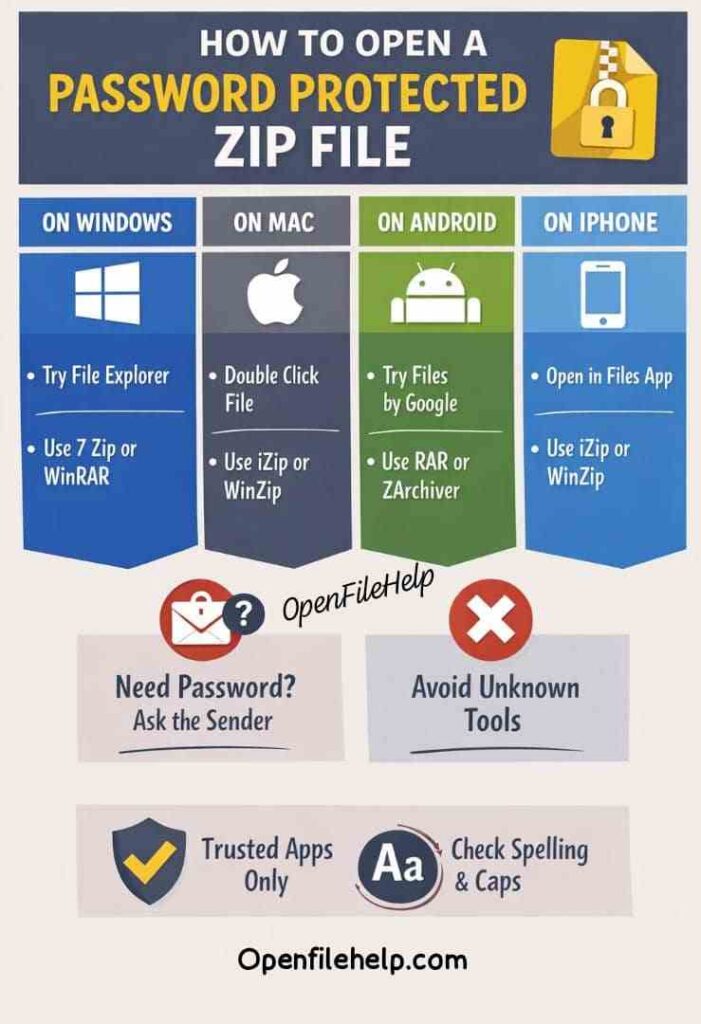
On Windows, Mac, Android, and iPhone, the basic idea is the same: if you have the password, you can open the file. If the built in tool refuses the archive or does not fully support the encryption, a dedicated extractor like 7 Zip, RAR, iZip, or WinZip may help.
Microsoft, Apple, and Google all support normal ZIP handling on their platforms, but each one has limits when the archive is more advanced.
In this guide, I will show you how to open password protected ZIP files on Windows, Mac, Android, and iPhone, what to do if the built in method fails, and what your realistic options are if you do not have the password. The goal is simple: help you get to your files without wasting time guessing.
In a Nutshell
- A password protected ZIP file is a compressed archive that asks for a password before extraction.
- On Windows 10 and 11, File Explorer can open and extract normal ZIP files, but Microsoft notes that the built in ZIP feature does not support password encrypted files.
- On Mac, iPhone, and Android, built in tools handle standard ZIP files well, and dedicated apps are the better fallback when the archive is protected or behaves strangely.
What Is a Password Protected ZIP File?
A password protected ZIP file is just a ZIP archive that has been locked so you cannot open its contents without the correct password.
People use this when they want to keep shared files private, add a layer of security, or make sure only the intended recipient can read the archive. ZIP files are popular because they compress files into a smaller package, and the password adds an extra access step on top of that.
That password matters. If you type it correctly, the archive opens. If you do not have it, the file stays locked. That is why the first fix is usually not some advanced trick.
It is simply getting the correct password from the person who sent the file or checking wherever you normally store passwords and notes. The fastest solution is often the obvious one.
How to Open a Password Protected ZIP File on Windows
Windows is a great place to start because most people use it first. For ordinary ZIP files, Microsoft says you can open the zipped folder, drag out a single item, or choose Extract All.
However, Microsoft also notes that File Explorer’s ZIP feature does not support password encrypted files. That means if the archive is protected, the built in method may not be enough.
Step 1: Try File Explorer First
Locate the ZIP file, then double click it. If Windows allows you in, you can try Extract All and see whether it prompts for a password.
If the archive is supported by the built in feature, that will be the easiest path. If it refuses the file or gives you trouble, move straight to a dedicated extractor.
Step 2: Use 7 Zip If File Explorer Fails
7 Zip is a strong next step because it is free software and open source, and the official site says you do not need to register or pay for it. It is one of the most common tools people use for locked archives on Windows.
Here is the usual workflow:
- Install 7 Zip from the official site.
- Right click the ZIP file.
- Choose the 7 Zip menu.
- Pick Extract Here or Extract to folder name.
- Enter the password when prompted.
If the password is correct, the files should unpack into a normal folder. If it fails, the password may be wrong, the archive may be damaged, or the file may use an encryption method that your current tool does not like.
Step 3: Try Another Trusted Tool If Needed
If 7 Zip does not work, a tool like WinRAR or WinZip may be worth trying. The key is not to chase random “unlocker” websites. Use a well known archive tool instead. That keeps the process safer and more predictable.
How to Open a Password Protected ZIP File on Mac
On Mac, Apple says ZIP files can be opened by double clicking them in Finder or on the desktop. For standard ZIP files, macOS expands the archive automatically and places the unzipped item in the same folder. That part is very smooth.
Step 1: Double Click the ZIP File
Find the ZIP file in Finder, then double click it. If macOS can process the archive normally, it will create the extracted folder beside the ZIP file. Apple’s support page describes this as the standard way to unzip a compressed item.
Step 2: Enter the Password If Prompted
If the archive is encrypted and macOS asks for a password, type it carefully. Tiny mistakes matter here, especially with uppercase letters and special characters.
If the password is correct, the folder should open normally after extraction. If macOS refuses the archive, the file may be damaged or the built in route may not be enough for that particular archive.
Step 3: Use a Dedicated App If the Built in Tool Stops
If Apple’s built in unzip behavior does not fully handle the archive, a third party app is the practical next move. WinZip and iZip both advertise archive support on iPhone and iPad, including password protected or encrypted ZIP handling in the case of iZip.
On Mac, the same general idea applies: when the built in method cannot go further, a dedicated archive tool is the fallback.
How to Open a Password Protected ZIP File on Android
On Android, Files by Google can unzip standard ZIP files. Google’s help page says you open Files by Google, go to the folder containing the .zip file, select it, and tap Extract. Google also says the extracted files are saved in the same folder as the original ZIP file.
Step 1: Try Files by Google
Open Files by Google, browse to the archive, and tap the ZIP file. If the app can handle it, you will see a preview and an Extract option. That is the cleanest way to begin.
Google also notes that Files by Google only supports .zip files for this function, so it is best for regular ZIP archives rather than more complicated formats.
Step 2: If the Archive Is Protected, Switch to a Dedicated App
When a password protected ZIP does not cooperate in the built in flow, a dedicated archive app is often the easier path. ZArchiver and RAR are two common Android options. Google Play describes ZArchiver as an archive management app, and RAR as a compression and extraction app.
In practice, that means the Android strategy is simple: start with Files by Google, then move to a stronger extractor if the archive asks for a password or refuses to unpack cleanly. That approach keeps you from overcomplicating the fix.
READ ALSO: The Top 5 Free Tools to Open and Inspect APK Files (Desktop + Mobile)
How to Open a Password Protected ZIP File on iPhone
Apple says the Files app can open ZIP files directly on iPhone. You open the Files app, find the ZIP file, tap it, and a folder is created containing the files. You can then open the folder and work with the contents.
Step 1: Open the ZIP in Files
Open Files, go to the location where the archive is saved, and tap the ZIP file. For normal archives, iPhone will create a folder right away. Apple also says you can rename the extracted folder if needed.
Step 2: If the Archive Resists, Use a ZIP App
If the built in Files workflow does not handle the archive the way you need, third party apps are the backup plan. iZip says it supports ZIP, ZIPX, RAR, 7z, and other formats, including password protected and AES encrypted ZIP files. WinZip also lists multi format archive support on iPhone.
That is the main iPhone pattern: use Files first, then install a trusted archive app only if the ZIP is protected or more complex than a standard archive.
What to Do If You Do Not Have the Password
This is the hard part, and it is also the part where people often waste the most time.
If you do not have the password, the sensible next step is to contact the sender, check the original email thread, look through any shared notes or messages, or ask the person who created the archive to send it again without the password if that makes sense for the situation.
If the archive belongs to you, check whether the password was saved in a password manager or note you already use. Those are the honest recovery paths.
What I would not do is chase random “unlock ZIP instantly” downloads from unknown websites. That is usually where the real risk starts. A reputable archive app is one thing. A shady password cracking download is something else entirely.
Common Problems and Easy Fixes
If the password is correct but the file still will not open, the archive may be damaged. Microsoft says Windows ZIP handling has limits with password encrypted files, and Google and Apple both rely on the file actually being in good condition before extraction can succeed. That is why redownloading the archive often helps.
If the password keeps failing, check your typing carefully. Capital letters, spacing, and special characters matter. On a phone, the keyboard can easily add one tiny mistake that makes the entire password look wrong.
If the file was sent recently, ask the sender to confirm the exact password rather than guessing. That saves a lot of time and frustration.
If the archive opens on one device but not another, the tool may be the issue rather than the file. That is exactly why 7 Zip, WinZip, iZip, and RAR are worth keeping in mind. Different tools support different archive features, so one app may succeed where another stops.
Built in Tools Versus Third Party Apps
Here is the easiest way to think about it.
Built in tools are best for normal ZIP files. Windows File Explorer, Mac Finder and Archive handling, Android Files by Google, and iPhone Files all cover the everyday stuff very well. That is why they should always be your first stop.
Third party apps are best when the archive is password protected, encrypted, or otherwise stubborn. 7 Zip is free and open source on Windows. iZip and WinZip are established mobile options.
RAR and ZArchiver are common Android choices. In other words, the built in route is your fast lane, and the app route is your backup plan.
Safety Tips Before You Open Any ZIP File
Password protected or not, be careful with ZIP files from unknown senders. A ZIP archive can be used to hide content you were not expecting, so only open files from sources you trust.
If the file arrived by email or chat, make sure you know who sent it and why. That simple pause can save you a lot of trouble.
One thing I always tell people is this: if a file is important, keep the password somewhere safe before you need it again. A secure password manager is much better than trying to remember a random string from three weeks ago. That small habit makes future access much easier.
Conclusion
Opening a password protected ZIP file is usually straightforward once you know which tool you should trust. On Windows, File Explorer is fine for normal ZIPs, but Microsoft notes that password encrypted files are not supported in that built in ZIP feature, so 7 Zip is often the better fallback.
On Mac, iPhone, and Android, the built in file apps handle ordinary ZIP files nicely, and dedicated archive apps become useful when the archive is protected or more advanced.
The real lesson here is simple. If you have the password, use the built in tool first. If it fails, switch to a trusted archive app. If you do not have the password, go back to the sender or the place where the password was originally stored. That approach is fast, safe, and realistic.
FAQs
Not in any reliable, normal workflow. The practical fix is to get the password from the sender or check where it may already have been saved. Built in tools still need the correct password to extract the contents.
Because the archive was encrypted before it was shared. That is normal behavior for password protected ZIP files.
Microsoft notes that File Explorer’s ZIP support does not handle password encrypted files. In that case, try 7 Zip or another trusted archive tool.
iZip is a strong option because its App Store listing says it supports password protected and AES encrypted ZIP files. WinZip is another common choice.
RAR and ZArchiver are two of the better known options. Google’s Files by Google handles standard ZIP files, but dedicated archive tools are the better backup when the archive is protected.